
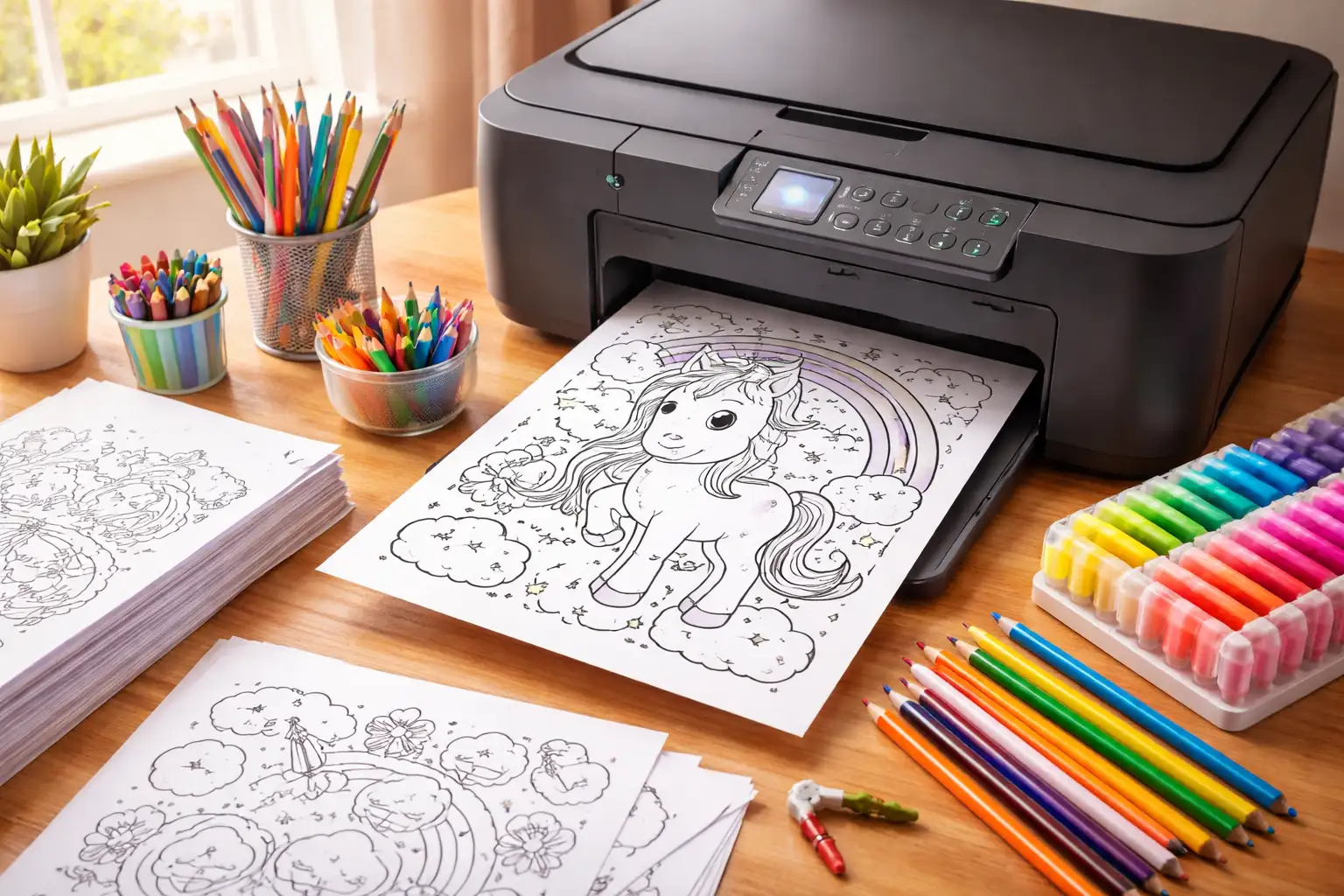
You hit print, the page slides out, and the dragon’s tail is missing. The lines that looked bold on the screen are pale gray, the picture sits in the top-left corner with a huge white margin on the right, and the kid who was waiting has already lost interest. We hear about this more than anything else, and almost every case comes down to the same four settings.
Here’s how to get a page that comes out edge to edge, with black lines you can see from across the room, every time. Most of it is a one-time fix.
Use the PDF button, not your browser’s print
Every page on this site has two buttons: Print PDF and Download Image. The PDF is the one you want for printing. It’s already laid out for a sheet of paper, sized so the same file prints correctly on US Letter and on A4, with a small margin all the way round so nothing falls off the edge.
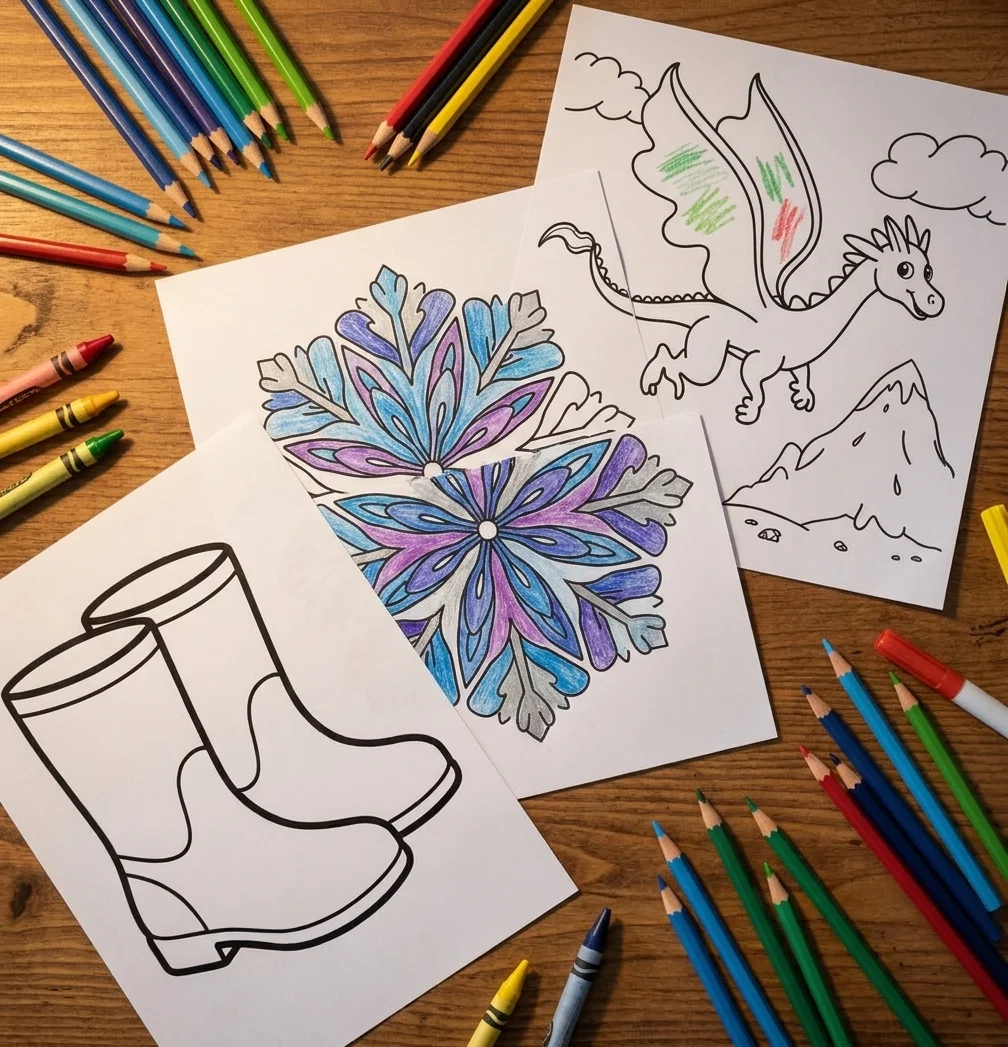
What goes wrong is printing the picture straight from the browser tab. The browser treats it as a web page: it adds a header with the URL, a footer with the date, and it scales the image however it likes. That’s where the cropped tail on a dragon flying over the mountains comes from. The dragon reaches the edge of the picture, and the browser’s margin eats it. Open the PDF instead and the whole dragon is there.
The JPEG download has its own job: use it when you want to drop the picture into a worksheet or a slideshow, or send it to someone by message. For paper, PDF.
Check one box in the print dialog
Open the PDF, press Print, and look for a setting called Fit to page, Fit to printable area or Scale: Fit. Pick it. That single box is the difference between a picture that fills the sheet and a picture that sits small in one corner. On most home printers it’s under “Page sizing” or “Scale.”
Two things to avoid while you’re in there. Don’t pick “Actual size” or “100%” unless the page already matches your paper exactly. And check that “Pages per sheet” says 1, not 2 or 4. That setting is the usual reason a page prints tiny: someone printed a booklet last month and the printer remembered.
If you switch between Letter and A4, you don’t need to do anything else. The PDF has enough margin that Fit to page handles both.
Draft mode is why the lines look gray
Most printers ship with a default quality of Draft, Economy or Fast. It saves ink by laying down less of it, and on a coloring page that turns crisp black outlines into soft gray ones. Kids notice: gray lines are harder to see where to stop, and a marker runs right over them.
Set the quality to Normal (or Standard). You don’t need Best or Photo for line art. And set the color option to Black only or Grayscale. Coloring pages are black and white, and printing them “in color” makes some printers mix the black out of three color inks, which comes out slightly brown and empties the cartridges you actually care about.
The pages that show the difference most are the detailed ones. A snowflake made of fine, symmetrical lines in Draft mode is a gray smudge; in Normal it’s a snowflake. A Christmas tree with candles and candy canes has thin outlines that vanish at low quality. A simple page like a pair of rain boots survives Draft fine, so if you’re printing thirty of those for a party, save the ink.
Paper: the cheap stuff is fine, until markers show up
Ordinary copy paper (the 20 lb / 75 gsm ream from the supermarket) is right for crayons and colored pencils. It takes wax and pencil well, it’s cheap enough to print two copies of everything, and it feeds through any printer without complaint.
Markers are where it fails. Felt tips soak through thin paper, bleed past the outlines, and leave the sheet wavy. If markers are the main tool in your house, buy a ream of heavier paper, 24 lb or above, or a small pack of cardstock for the pages that matter. Cardstock also holds up to being cut out, which turns a butterfly with wide-open wings into something you can hang from a string.
Glossy photo paper is the one to skip. It looks nice in the tray and it’s a disaster to color on: crayons slide, pencils barely mark it, and markers never dry.
- Plain copy paper, 20 lb / 75 gsm, for crayons and pencils.
- Heavier paper, 24 lb or more, if markers are involved.
- A small pack of white cardstock for pages you’ll cut out.
- A spare black cartridge. Line art uses only black, and it always runs out on a Sunday.
Detailed pages want more, simple pages want less
Match the print settings to the page. A floral mandala or a forest café full of animals drinking coffee has hundreds of small closed shapes, and every one of them needs a clean, dark edge to be colorable. Print those at Normal quality on decent paper, and if you have a “Best” setting and the time, it’s the one page where it’s worth it.
A page with big shapes, like a round dog holding a cup of tea, is the opposite. Thick outlines, few areas, forgiving of a bit of gray. That’s the page to print in bulk for a party or a classroom, and Draft mode won’t hurt it much.
If you’re printing a whole stack, print one first, look at it under a lamp, then print the rest. It takes thirty seconds and it’s saved us a lot of paper.
Printing from a phone
The same rules apply, the buttons are just smaller. Tap Print PDF on the page, wait for the PDF to open, then use the share or print icon. Look for the same Fit to page option in the phone’s print sheet, and check the quality setting if the printer app has one, because phones default to draft even more often than computers do.
One more source of pages while you’re on the phone: the photo tool. Take a picture of the dog, upload it, and it comes back as outlines you can print with the same PDF button. Those photo pages tend to have finer lines than a drawn page, so they’re a Normal-quality print, not a Draft one.
Do this once and you’re done: open the rain boots page, print it from the PDF with Fit to page and Normal quality, and hold it up to the window. If the outlines are black and the boots reach both edges of the picture, every page after it will come out the same way.
Ready to Make Your Own?
Describe any idea and get a free, printable coloring page in seconds.
Try the Coloring Page Generator